
Archive: Original Research Archive: April 18, 2024 (Post-ACP Lifeline Transition Cycle) | Last Comprehensive Audit: November 2026 | Written by Claire Holloway, MPA and Reviewed by Marcus Bennett, JD
A free government tablet for seniors is available through Lifeline, not through a government tablet program. Seniors who receive Medicaid, SSI, SNAP, or Veterans Pension often qualify, and seniors with low income can qualify at or below 135 percent of the Federal Poverty Guidelines. Lifeline pays for service, not tablets.
A Free Government Tablet for Seniors in 2026
Many older adults hear about a free government tablet and wonder whether the government mails tablets to seniors. It does not. There is no federal program that sends a tablet to every senior, and there is no senior tablet list to join. What does exist is Lifeline, a federal program that lowers the cost of phone or internet service, and a set of carrier and nonprofit tablet offers that sit on top of it. A senior who qualifies for Lifeline may then be offered a tablet by a carrier, or may buy a low cost tablet from a nonprofit.
Lifeline is run by the Federal Communications Commission and administered by USAC. The discount is up to $9.25 per month for most households, and up to $34.25 per month on qualifying Tribal lands. Lifeline pays toward service, and it does not require a carrier to give a tablet to any customer. Some carriers do offer tablets to Lifeline customers, sometimes free and sometimes for a one time co-pay, because a tablet helps a customer use the service. Other carriers offer only a phone, or only a discount on service. Stock changes often, and a model that was available last month may be gone this month.
The one per household rule applies to seniors too. Only one Lifeline benefit is allowed per household, even if two older adults live together and both receive benefits. A household is a group of people who live together and share income and expenses. If a spouse already uses Lifeline, a second application will be stopped. Before a senior applies, the family should check who in the home already has the benefit, and decide together which person will hold it and which carrier will provide the service.
Who Qualifies: Income, Medicaid, SSI, and Other Programs
A senior can qualify for Lifeline in two ways: through a program, or through income. The program path is usually simpler. Medicaid, SSI, SNAP, Federal Public Housing Assistance, and Veterans Pension and Survivors Benefit are all listed as qualifying programs under the Lifeline rules at 47 CFR Part 54, section 54.409. If a senior receives any one of those programs, the USAC National Verifier can often approve the application based on that enrollment alone. No income math is needed, and no pay stubs are needed. The program enrollment is the proof.
The income path uses 135 percent of the Federal Poverty Guidelines. For 2026, in the 48 states and the District of Columbia, that ceiling is $21,546 per year for one person, $29,214 for two people, $36,882 for three people, and $44,550 for four people. Each additional person adds $7,668 per year. A senior who lives alone and receives only Social Security retirement income should add up the full year amount and compare it to the ceiling for one person. A couple should add up both incomes and compare the total to the ceiling for two people. Other regular income counts too, not just Social Security.
Some seniors receive SSDI, and SSDI alone does not qualify through the program path, so those seniors usually use the income path instead. Some seniors also receive a small pension, part time work income, or help from family, and that income counts toward the household total. If the income is above the ceiling, check whether any member of the household receives a qualifying program, because that program can still qualify the household. A senior who is unsure which path fits should start with the program path, because it is faster and needs less paperwork.
Large Screens, Large Text, and Simple Home Screens
A tablet for an older adult should be easy to see, easy to hold, and easy to tap. A screen of ten inches or more is usually better than a small screen, because it shows text larger, shows buttons farther apart, and shows a video call face more clearly. A small tablet may be cheaper, but it forces a person to hold it closer, to squint, and to tap small targets. For a person with low vision, a tremor, or arthritis, that small difference can decide whether the tablet is used every day or left in a drawer.
Large text and high contrast are built into most tablets, and they cost nothing extra. Open the settings, turn on large text, and check that buttons still fit on the screen. Turn on high contrast if the text is hard to read against a light background. Turn on a screen reader if reading is difficult, and test it on a web page before the first important call. A simple home screen also helps. Keep only the apps that will be used every day on the first screen, move the rest to a second screen, and make the most used app the easiest to find.
A tablet stand, a case with a handle, and a stylus can make a tablet much easier to use. A stand holds the screen at eye level, so a person does not need to hold it through a long video call. A case with a handle helps a person carry the tablet from room to room without dropping it. A stylus helps a person with a weak grip tap small buttons. These items cost little, and they can turn a tablet that feels awkward into a tablet that feels comfortable. Set them up on the first day, before frustration has a chance to build.
Telehealth Visits from the Kitchen Table
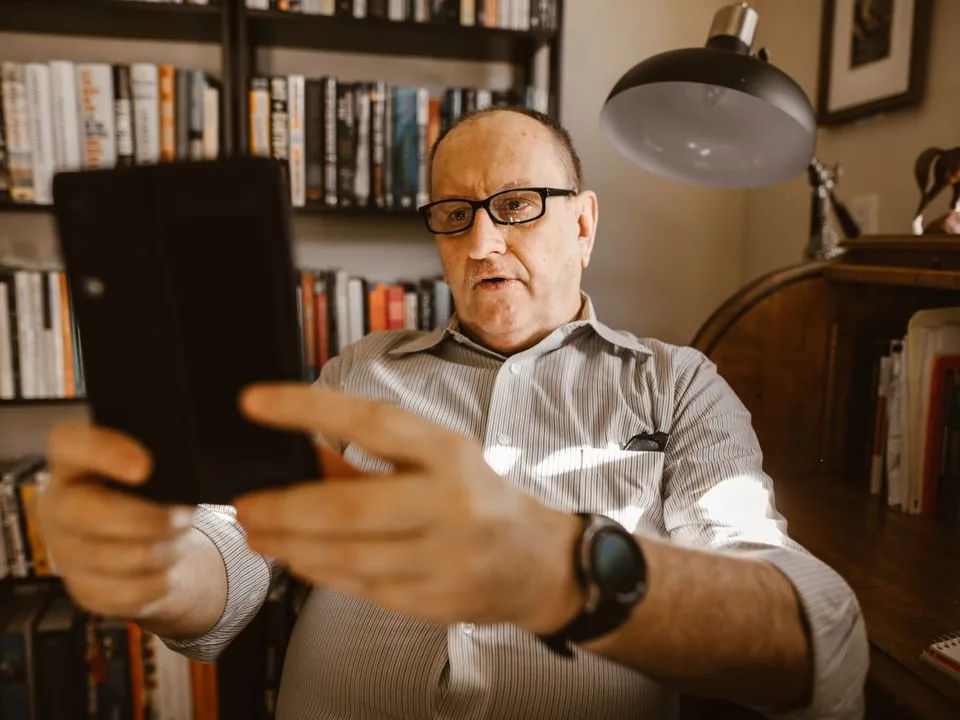
Telehealth is one of the best uses of a tablet for a senior, because it saves a trip to the clinic and it lets a family member join the visit from another room or another city. Most telehealth visits need only a camera, a microphone, a speaker, and a steady internet connection. A basic tablet with a clear screen and a recent operating system can handle that, even if it cannot run the newest games or the fastest apps. The larger screen shows a doctor face more clearly than a phone, and the front camera sits at a better angle when the tablet is propped on a table stand.
For a senior, test the tablet where the visit will actually happen, usually a living room chair with good light. Open the clinic video app, check that the camera frames the face, and turn the volume up until speech is clear. A practice call with a family member the day before takes the stress out of the real visit.
If video fails on the day, most clinics will switch to a phone call, and many have a patient portal where test results and messages can be read later. Ask the clinic office which backup it uses, and write the portal login steps on a card kept next to the tablet, so help is close at hand.
Senior Grants and Nonprofit Tablets Beyond Lifeline
Lifeline is not the only path to a tablet for a senior. Nonprofit organizations offer low cost refurbished tablets to older adults, and some local programs offer grants or donated devices. PCs for People is a 501(c)(3) organization with EIN 26-2066045, and it offers low cost devices and internet for $15 per month to households at or below 200 percent of the Federal Poverty Guidelines or enrolled in an income based assistance program. For 2026, the 200 percent ceiling is $31,920 for one person, $43,280 for two people, and $54,640 for three people.
For seniors who prefer a mailed application, Computers with Causes, also known as the Giving Center, is a 501(c)(3) organization with EIN 92-1162407. It takes donated Android, Surface, Fire, and iPad tablets, and it reviews mail in applications within 30 days. A family member can help fill in the form and post it, and the charity will write back with its decision.
Human-I-T is another nonprofit that provides certified low cost refurbished tablets and laptops with a one year hardware warranty and internet options for $14.99 per month. A warranty matters for a senior who depends on a tablet for telehealth or for daily contact with family, because a broken tablet without a warranty can leave a household without a device for weeks. Local senior centers, libraries, and area agencies on aging sometimes know about donated devices in the community. Call the local senior center and ask, because a local donation can arrive faster than a national application.
Helping a Parent Set Up a Tablet Without Taking Over
Adult children often want to help a parent with a new tablet, and the help works best when the parent stays in charge. Set up the tablet together, at the kitchen table, with time to spare. Let the parent hold the tablet, tap the buttons, and make the mistakes while help is nearby. A person who sets up a tablet alone learns faster than a person who watches someone else do it. Write down each step on a card in large print, and leave the card beside the tablet.
Choose settings that match the parent, not the person who is helping. Turn on large text if the parent needs it, even if the helper does not. Turn up the volume, turn on captions, and set the screen to stay on a little longer before it sleeps. Add only the contacts the parent will actually call, and add a photo to each contact so a face is easier to find than a name. Set the home screen to show the time, the date, and the weather in large print.
Patience matters more than speed. A parent may need to practice the same step three or four times before it feels natural, and that is normal. Do not take the tablet away to fix a problem, and do not change settings without explaining what changed. If a parent is worried about breaking the tablet, say clearly that tapping the wrong button will not break it, and show the way back to the home screen. A calm first week builds confidence, and confidence is what turns a new tablet into a daily habit.

Staying Connected to Family Without a Monthly Surprise
A tablet can help a senior stay in touch with children, grandchildren, and friends, and that contact matters for health as much as for happiness. Video calls, photo sharing, and simple messaging apps can all run on home Wi-Fi without a monthly cellular charge. A tablet that is used on Wi-Fi only has no monthly line fee, and it can still make video calls, send messages, and browse the internet at home. That is the cheapest way to use a tablet, and it is the right choice for a senior who spends most of the day at home.
The surprise comes when a tablet is tied to a cellular line. Some carrier tablets need a cellular line, and that line can cost $20 to $25 per month. A tablet that was free at the start can still cost $240 to $300 over a year if a line is attached. Before accepting a tablet, ask whether it can work on Wi-Fi only, and ask what happens if the cellular line is never activated. A Wi-Fi only tablet is often the better choice for a senior who has home internet, and a cellular line is only needed for a senior who travels often or who has no home internet.
Check the monthly bill in the first month, and check it again in the third month, when a promotion may end. A bill that rises without warning is a sign to call the carrier and ask what changed. Keep the original agreement, keep the receipt for any co-pay, and keep the name of the person who helped with the sale. A senior who checks the bill early can fix a problem in one phone call, while a senior who waits six months may face a larger balance and a harder dispute. Family members can help by checking the bill together, once a month, for the first few months.
Scams Aimed at Older Adults and the Warning Signs
Older adults are a common target for tablet scams, because a free tablet offer sounds helpful and the pressure to decide quickly can be strong. A stranger at the door, a tent at a grocery store, or a caller who says the government is sending tablets may all be part of the same pattern. The offer may sound simple, but the risk is real. A representative may quietly transfer the household Lifeline benefit to a new carrier without clear consent, or may add a monthly line that was not mentioned.
Never give a Social Security number, a photo ID, a Medicaid card, or a bank card to a stranger at a door or a tent. A real Lifeline enrollment can be done through the National Verifier, through a known carrier store, or through a carrier website that the family has checked. A person who pressures for an immediate signature, who refuses to leave a paper copy, or who says the offer ends in a few minutes is using pressure, not service. Walk away, keep any paper that was handed over, and talk to a family member before signing anything.
If a transfer has already happened, act the same day. Contact the original carrier, contact the National Verifier, and ask which carrier now holds the benefit. Keep the date, the time, and the name of every person who is spoken to. A family member can help make those calls, and can help check the Lifeline account to confirm which carrier holds the benefit. Prevention is faster than a fix. Apply through a channel that can be verified, keep a copy of every form, and check the account after any enrollment. A few minutes of checking can save months of dispute.
Battery, Charging, and Keeping the Tablet Working
A tablet that will not hold a charge is a tablet that will not be used, and battery care is simple once it becomes a habit. Charge the tablet in the same place every day, at the same time, so charging becomes part of the routine. A charger by the bed or by the favorite chair works well, as long as the cord is not a tripping hazard. Do not let the battery run to zero every day, and do not leave the tablet on a charger for days at a time without using it.
Keep the tablet updated, but do it at a calm time, not in the middle of a telehealth visit. Updates fix security problems, improve the camera and sound, and keep apps working. Set the tablet to update at night, when it is charging and connected to Wi-Fi, so updates do not interrupt the day. If an update asks for a password or a choice that is not clear, ask a family member for help rather than tapping through it alone. A wrong tap during an update can change a setting that is hard to find again.
If the tablet stops working, start with the simplest fix. Restart it, check that the charger is plugged in firmly, and check that Wi-Fi is still connected. A restart fixes many small problems, and it costs nothing. If the problem continues, check the warranty. A nonprofit tablet from Human-I-T carries a one year hardware warranty, and a carrier tablet may carry a shorter warranty. Keep the receipt and the warranty paper in one folder, and call the seller before buying a replacement. A tablet that is still under warranty should be repaired or replaced, not thrown away.
A Simple Plan for the First Week
The first week with a tablet should be slow, simple, and focused on three things: making a call, joining a video visit, and reading a message. Practice each one with a family member nearby, and practice each one more than once. A person who can make a video call to a grandchild, join a telehealth visit, and read a message from a clinic has learned the three skills that matter most. Other apps can wait until those three feel easy. A tablet that does three things well is more useful than a tablet that does thirty things badly.
Make a short list of people to call in the first week, and call one person each day. A daily call builds confidence, and it gives the senior a reason to pick up the tablet. Add a photo to each contact, so a face is easier to find than a name. Set a reminder for the first telehealth visit, and test the video app the day before, not the morning of the visit. A test call the day before can reveal a sound problem, a camera problem, or a Wi-Fi problem while there is still time to fix it.
At the end of the first week, check three things: the bill, the battery, and the home screen. Check the bill to make sure no unexpected charge appeared. Check the battery to make sure it lasts through the day. Check the home screen to make sure the most used apps are easy to find, and move anything that is not used to a second screen. If something is not working, ask for help now, while the tablet is still new and the seller can still help. A simple first week sets up a tablet that will be used for months and years, not just for a few days.
Keep reading
Each of these pages covers one part of the same decision, and the free government tablet for seniors page pairs with the list below, so read the one that matches your situation next.
- free tablet with Medicaid
- free tablet with SSI
- free nonprofit tablets
- free tablet application
- free tablet for students
Start at the free tablet homepage any time you want the full picture again, or go straight to the free tablet application page when you are ready to check eligibility.
Questions readers ask most
Does the government send a free tablet to every senior?
No, there is no program that mails a tablet to every senior. Seniors can qualify for Lifeline through Medicaid, SSI, SNAP, Veterans Pension, or low income, and some Lifeline carriers then offer a tablet. Nonprofits also offer low cost refurbished tablets. Check Lifeline first, then compare carrier and nonprofit options.
How does a senior qualify for Lifeline?
A senior qualifies through a program such as Medicaid, SSI, SNAP, Federal Public Housing Assistance, or Veterans Pension, or through income at or below 135 percent of the Federal Poverty Guidelines. For one person in 2026, that ceiling is $21,546 per year. The National Verifier checks enrollment or income through official records.
How much is the Lifeline discount for seniors?
Lifeline gives up to $9.25 per month off phone or internet service, and up to $34.25 per month on qualifying Tribal lands. The discount pays for service, not for a tablet. A tablet may carry a co-pay or a monthly line charge, so ask for the full first year cost in writing.
What screen size is best for an older adult?
A screen of ten inches or more is usually best, because it shows text larger, buttons farther apart, and video faces more clearly. Turn on large text and high contrast in the settings, and use a tablet stand to hold the screen at eye level. A stylus and a case with a handle can also help.
Can a senior use a tablet for telehealth visits?
Yes, most telehealth visits need only a camera, a microphone, a speaker, and a steady internet connection. Test the video app in the room where visits happen, check the sound, and test a call with a family member first. Keep a medication list and a paper backup ready, and ask the clinic if a family member can join.
Can my parent get a tablet if I already have Lifeline?
Only one Lifeline benefit is allowed per household, so if you live together and share income and expenses, you cannot add a second benefit at the same address. The household can choose who holds the benefit. If your parent lives at a separate address and qualifies on their own, they can apply separately.
Are nonprofit tablets a good choice for seniors?
Yes, nonprofits such as PCs for People, Computers with Causes, and Human-I-T offer low cost refurbished tablets to qualifying households. Human-I-T tablets carry a one year hardware warranty, and PCs for People offers $15 per month internet. Compare the price, the warranty, and the delivery time before you choose.
How can a senior avoid a tablet scam?
Never give personal documents to a stranger at a door or a tent, and never sign under pressure. Apply through the National Verifier or a known carrier store. Ask whether the tablet needs a cellular line and what it costs each month, since some offers add $20 to $25 per month. Check the bill in the first month.